Before you start
You need a Shopify store with an Online Store 2.0 theme that accepts app blocks. Pick the products that people buy more than one of. Decide what percentage off 2 and 3 units should get, from your margin.
Install BulkPilot
- Open BulkPilot Smart BOGO Discounts on the Shopify App Store and install the app.
- Log in to Shopify and choose the store.
- Review the permissions Shopify shows and approve: edit products and collections, and edit discount codes and promotions.
- The app opens on Home. The left menu reads: Home, Rules, Settings, Plan, Support.
Create a tier rule
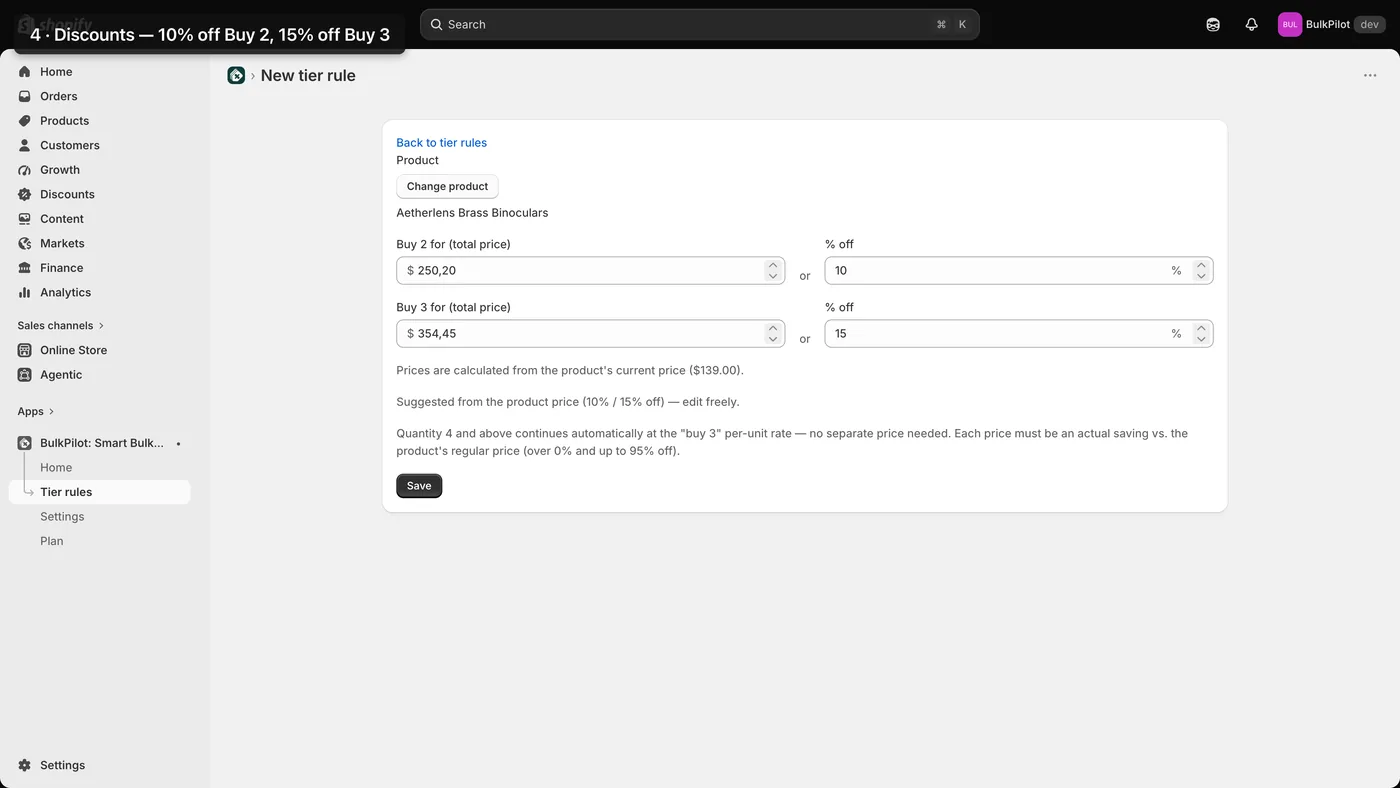
- Open Rules and press New rule.
- Under Applies to, press Add collections or Add products, or choose Whole store. Exclude any products you want left out.
- Set Buy 2: % off.
- Set Buy 3 or more: % off. Or set Deal type to BOGO: buy 1 get 1 50% OFF, buy 2 get 1 free.
- Each discount must be over 0% and up to 95% OFF. Quantity 4 and above continues at the Buy 3 per-unit rate; BOGO stops at 3 units.
- Save. The rule appears in the Rules table with its status.
Add the buttons to the product page
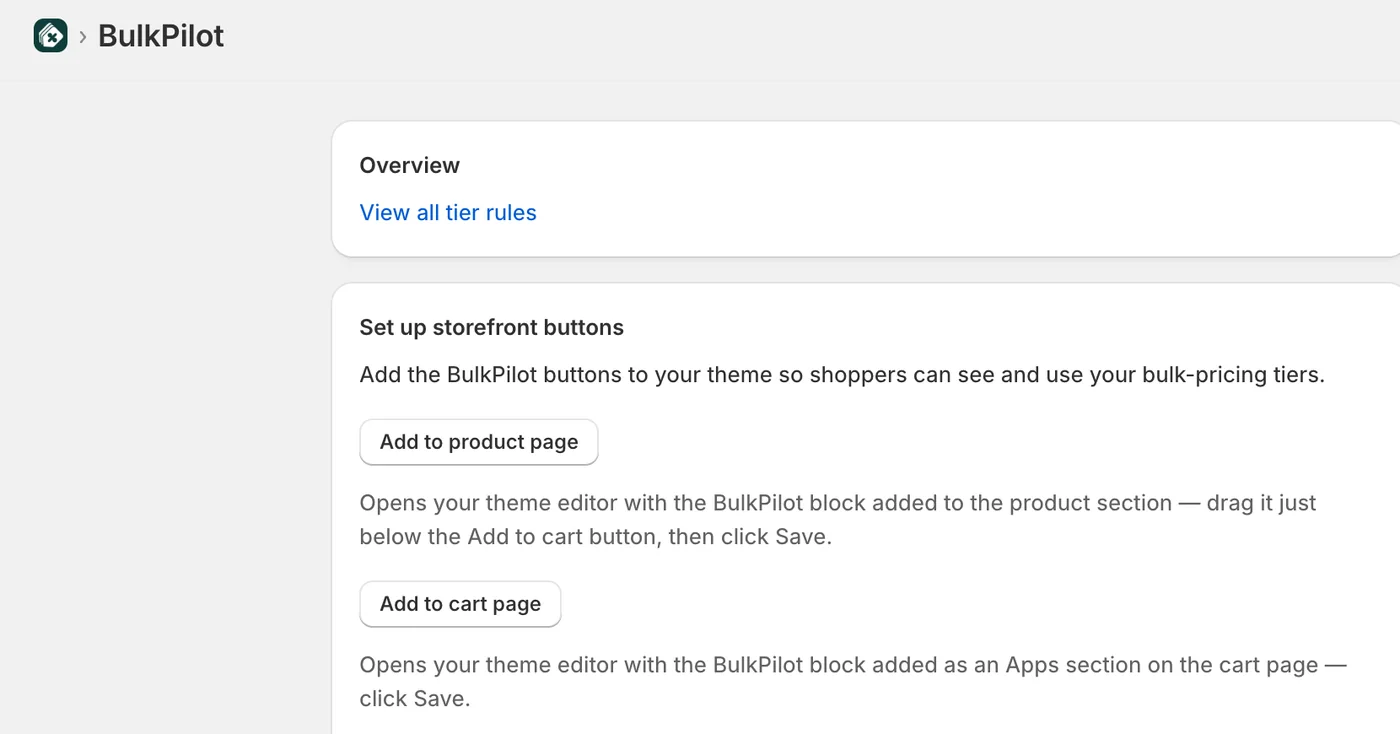
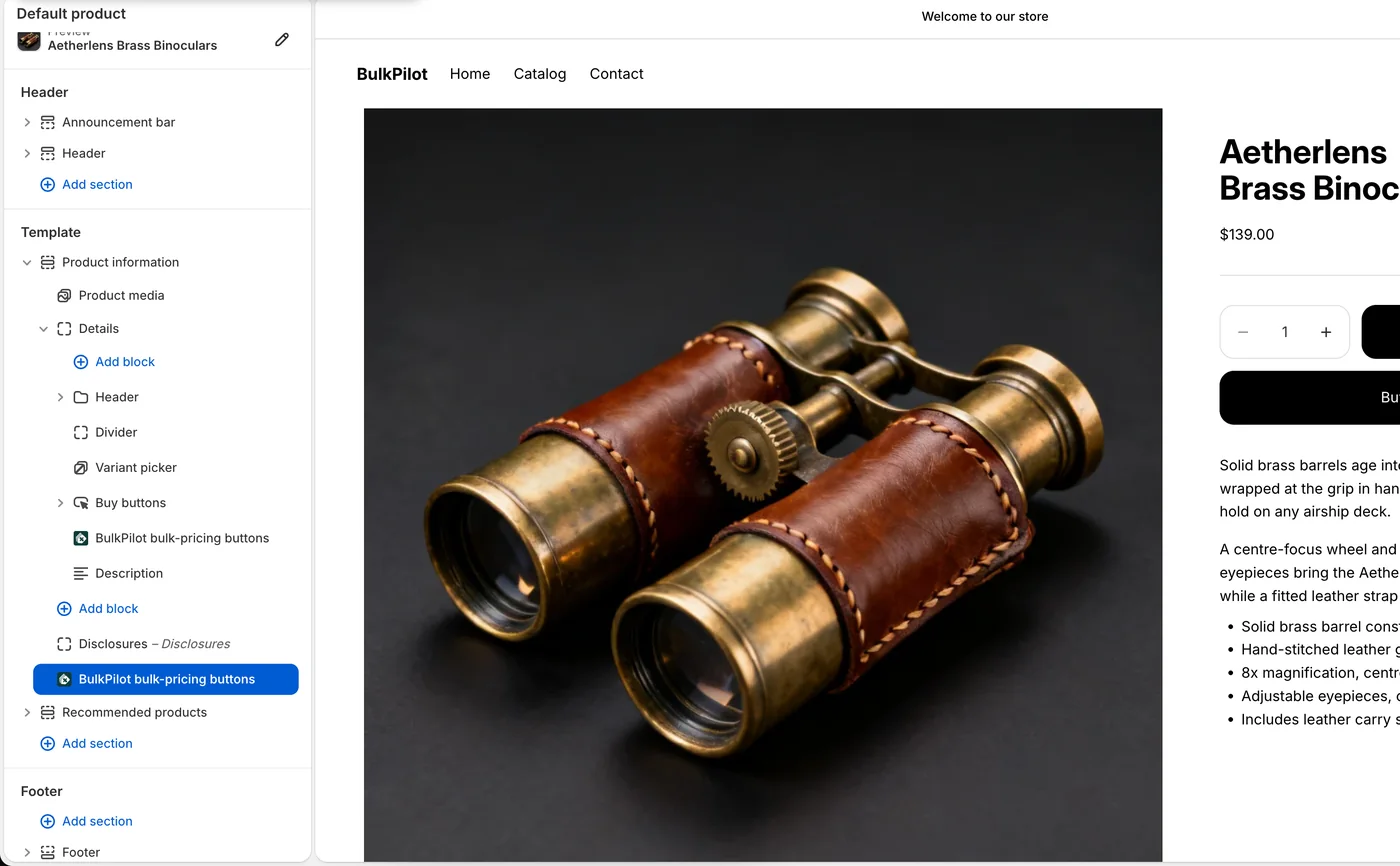
- In Shopify, go to Online Store, Themes, Customize, and open the product template.
- Add the app block BulkPilot bulk-pricing buttons. Its one setting is an optional heading.
- Drag it just below the Add to cart button and save.
Add the buttons to the cart page
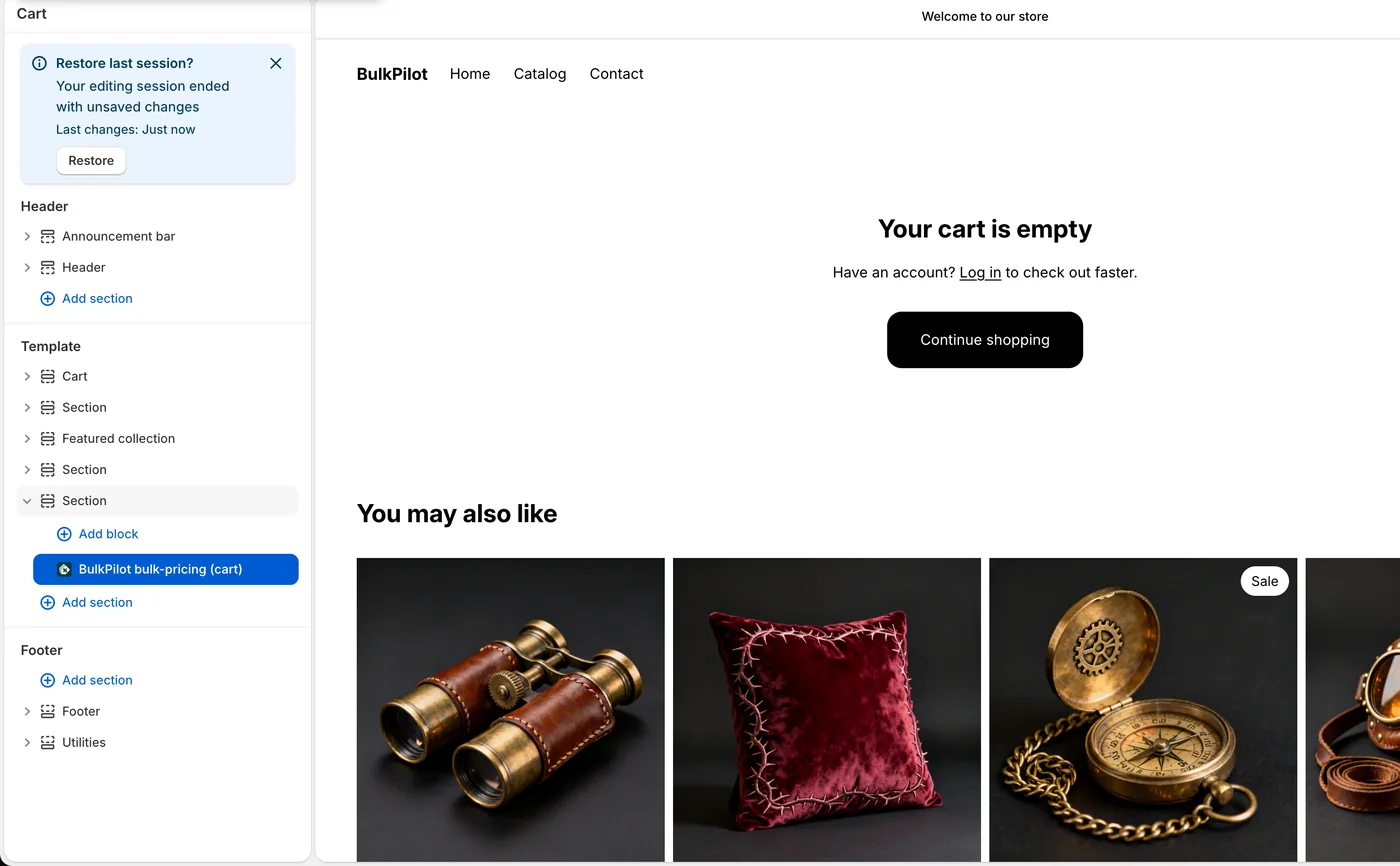
- Open the cart template in the theme editor.
- Add the app block BulkPilot bulk-pricing (cart). Shopify adds it last.
- Drag it above the Check out button and save.
The cart drawer is not supported in this version.
Settings
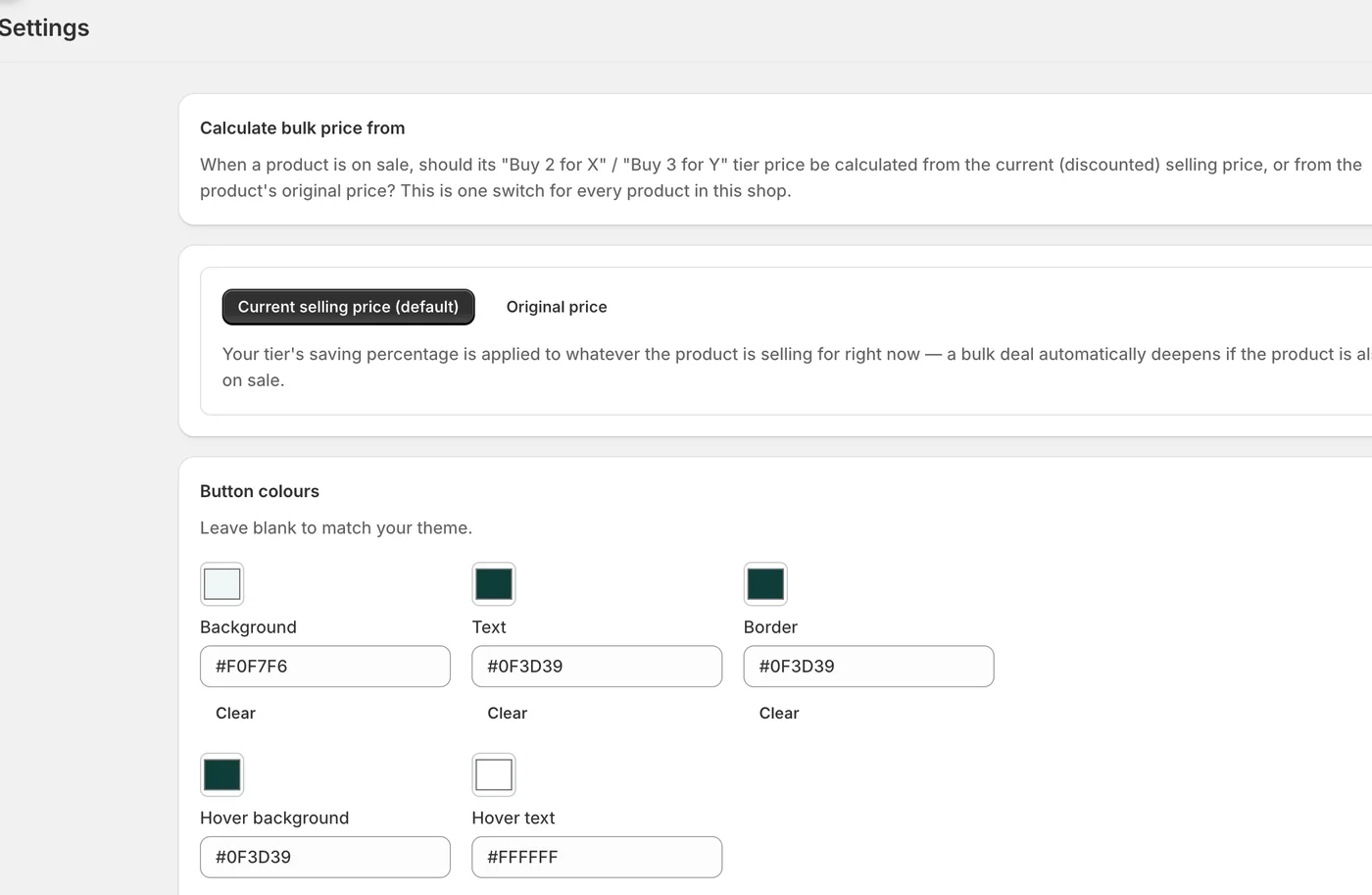
- Calculate bulk price from: Current selling price (default) or Original price. This decides how tiers behave when a product is already on sale. It is one switch for every product.
- Button colours: Background, Text, Border, Hover background and Hover text, each with a colour picker. Leave them blank to match your theme.
Check it works
- Open the product page: “Buy 2” and “Buy 3” show with the saving and a regular-price line, for the variant selected.
- Press one, go to the cart: the label “Bulk price applied” shows.
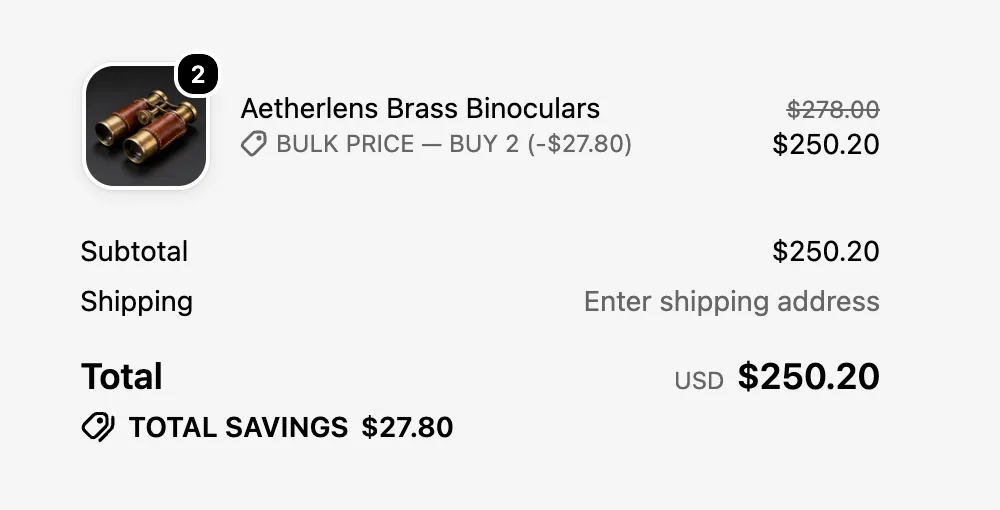
- Go to checkout: the tier price applies with no code. It combines with order-level and shipping discounts, but not with other product-level discounts.

Optional: start a monthly paid plan, with a 50% OFF code
The free plan covers one active rule. BulkPilot Pro allows unlimited rules.
- In the left menu, open Plan. The page is called BulkPilot plans and compares Free and BulkPilot Pro.
- Press Upgrade to BulkPilot Pro.
- While the offer runs, enter the code we email you in the app when you start a monthly paid plan, and the plan is 50% OFF while the offer runs. There are only 50 codes per app; once the 50 codes for BulkPilot are used, new stores don’t get this discount. Shopify shows the exact discount period before you approve.
- Cancel subscription returns the store to the Free plan limit.
Troubleshooting
- The Buy 2 and Buy 3 buttons don’t show. Two things are needed: an enabled tier rule for that product, and the app block added in Online Store, Themes, Customize, on the product template and the cart template. Installing the app does not place the blocks.
- The theme editor offers no app blocks. App blocks only fit themes built on Online Store 2.0, where every page is made of sections. An older theme cannot hold them. Check the theme in Online Store, Themes, or switch to an Online Store 2.0 theme.
- The buttons don’t show in the cart drawer. The cart drawer is not supported in this version. The buttons show on the product page and the cart page.
- Checkout applied a different discount. BulkPilot combines with order-level and shipping discounts, but not with other product-level discounts. When one is active, Shopify applies whichever wins under its own rules.
- The tier price is worked out from the sale price. That is the default. In Settings, set Calculate bulk price from to Original price. It is one switch for every product.
- A tier rule will not save. Each discount must be over 0% and up to 95% OFF.
Remove BulkPilot
- To stop BulkPilot Pro but keep the app, press Cancel subscription on the BulkPilot plans page. The store returns to the Free plan limit.
- In the theme editor, remove the BulkPilot bulk-pricing buttons block from the product template and the BulkPilot bulk-pricing (cart) block from the cart template.
- In your Shopify admin, open Settings, then Apps (called Apps and sales channels on some admins), choose BulkPilot and uninstall it.
Only 50 codes per app
50% OFF any monthly paid plan while the offer runs
- Install the app from the Shopify App Store. A free plan is available.
- Enter the code we email you when you start a monthly paid plan.
Shopify shows the exact discount period before you approve.
Once the 50 codes for BulkPilot are used, new stores don’t get this discount.
CodeGet the code
Offer terms
50% OFF any monthly paid plan while the offer runs
- Paid plan
- Any BulkPilot monthly paid plan
- Code
- −50%
- Cancel
- The 50% ends
- Codes
- Only 50 per app
- Free plan
- Available
 BulkPilot Smart BOGO Discounts · Free plan available
Questions about setting up BulkPilot
Why don’t I see the Buy 2 and Buy 3 buttons?
Two things are needed: a tier rule for that product, and the theme block added in Online Store, Themes, Customize, on the product and cart templates. Installing the app does not place the blocks.
Do shoppers need a discount code?
No. The tier price applies at checkout automatically.
Does BulkPilot show in the cart drawer?
Not in this version. The buttons show on the product page and the cart page.
Why did checkout apply a different discount?
BulkPilot does not combine with other product-level discounts. When one is active, Shopify applies whichever wins under its own rules.
What does “Calculate bulk price from” do?
When a product is already on sale, it decides whether the tier is based on the current price or the original price. It is one switch for every product in the store.
Read or leave a review of BulkPilot Smart BOGO Discounts on the Shopify App Store