Before you start
You need a Shopify store and the products you want to bundle. Every product used inside a bundle must be published to your Online Store. The savings card on the Checkout page itself needs Shopify Plus; everything else works on all plans.
Install BundlePilot
- Open BundlePilot: Smart Bundles on the Shopify App Store and install the app.
- Log in to Shopify and choose the store.
- Review the permissions Shopify shows and approve. They include editing products and collections, editing Shopify Functions (cart transforms), viewing the Online Store theme and editing product publications.
- The app opens on Home. Until setup is done, a banner reads “Finish setting up BundlePilot”, with a link to Open setup.
Step 1: create your first bundle
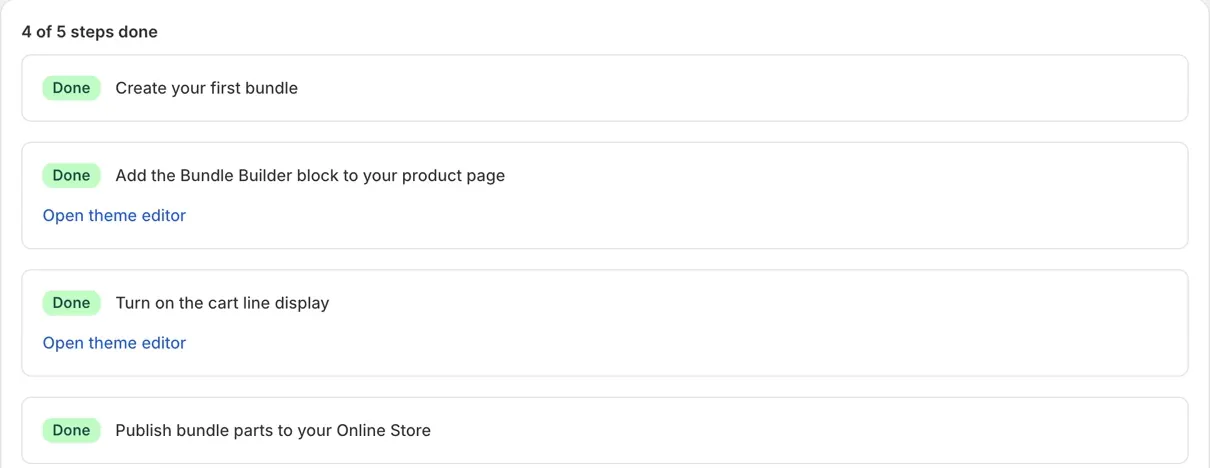
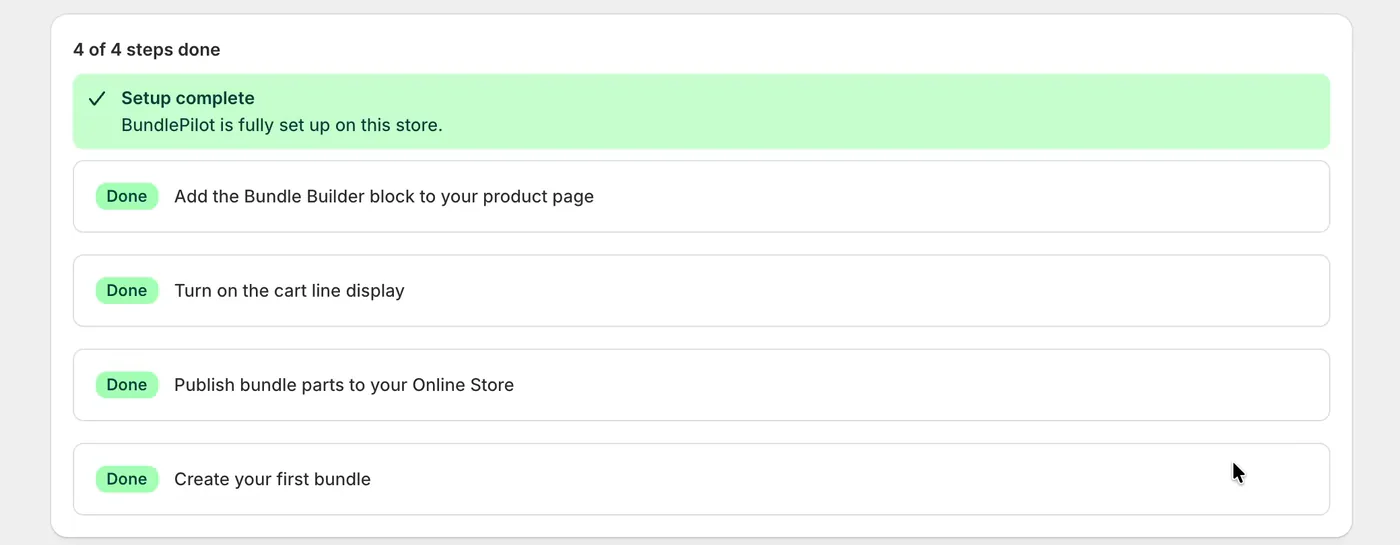
The Setup screen shows one step at a time, each with Check again and I did this. Do this one first: the Bundle Builder block only shows on a product page once a bundle exists.
- Press Create a bundle, or create a demo bundle from sample products.
- Type a Bundle title.
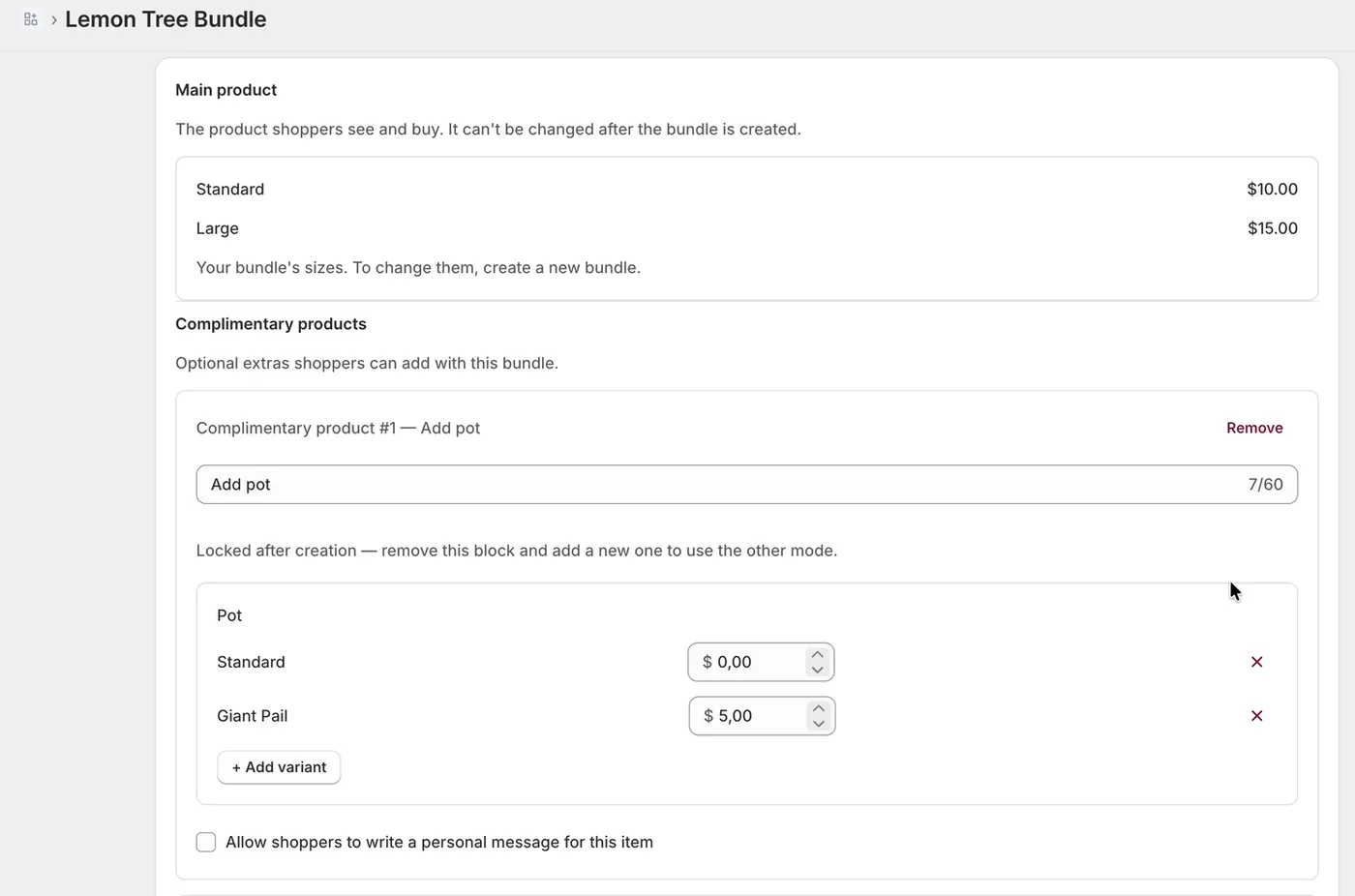
- Under Main product, press Choose product. If it has variants, each one becomes a price option.
- Under Complimentary products, add the extras. Each block offers One product’s variants (shoppers pick from a dropdown) or Choose between products. The mode is locked after creation.
- Set an Extra charge per option, and tick Allow shoppers to write a personal message for this item if you want gift messages.
Step 2: add the Bundle Builder block
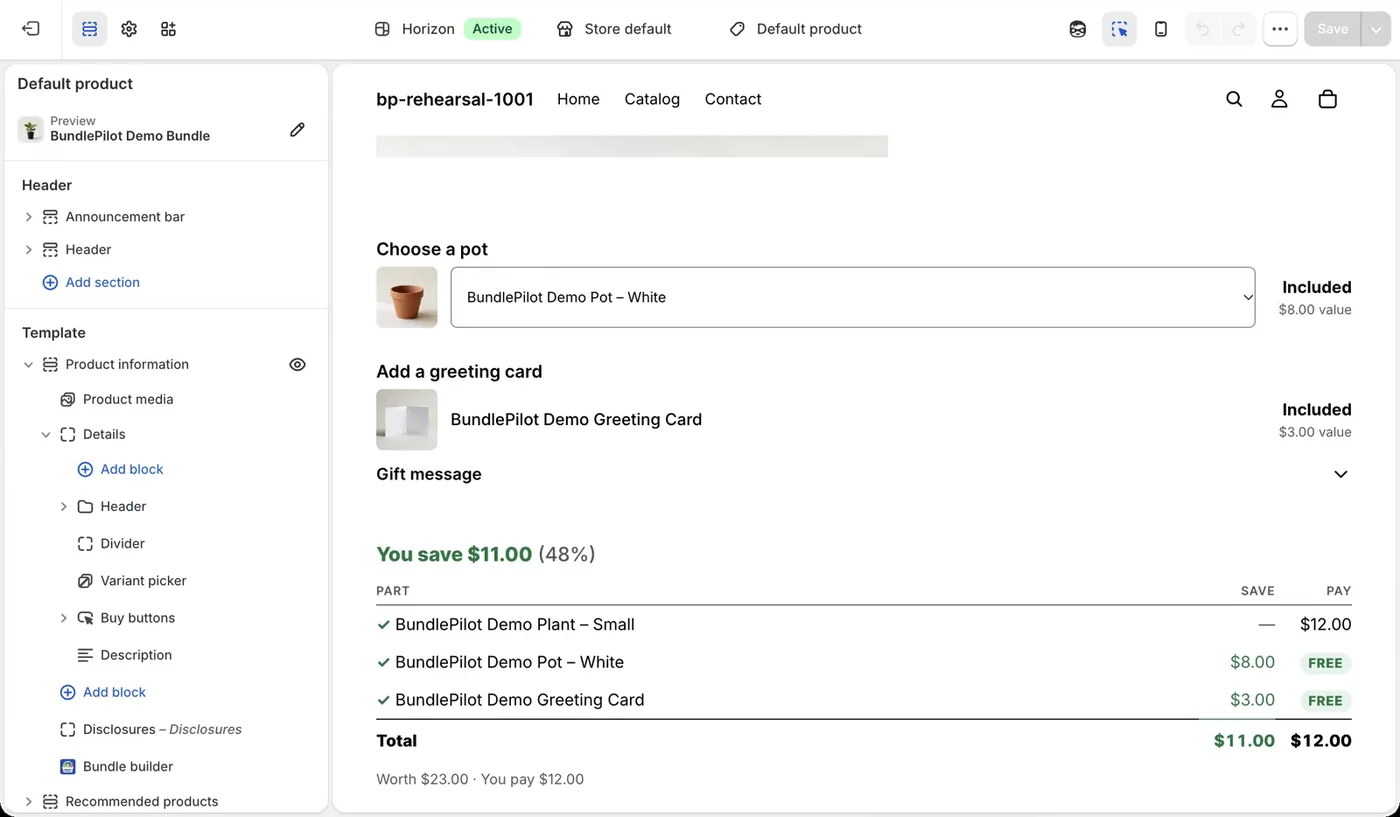
Press Open theme editor, add the Bundle builder app block to the product template and save. It renders nothing on products that are not bundles, so it is safe on any product template.
Step 3: turn on the cart line display
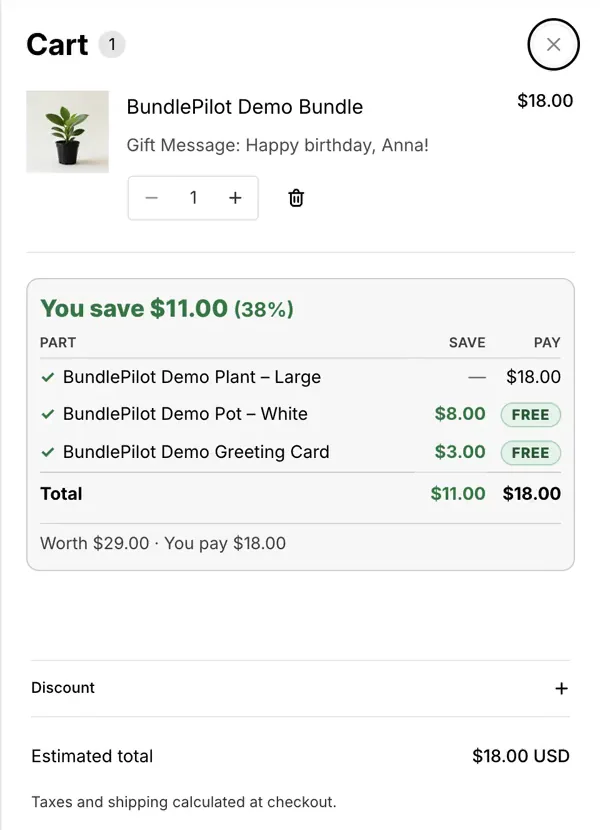
Press Open theme editor and turn on the BundlePilot cart lines app embed, so a bundle’s parts show clearly in the cart and at checkout.
Step 4: publish bundle parts to your Online Store
Every product used inside a bundle needs to be published to your Online Store. Otherwise a sold-out option can still show as available. The step lists any unpublished products, each with a Publish link.
Step 5: turn on the savings card
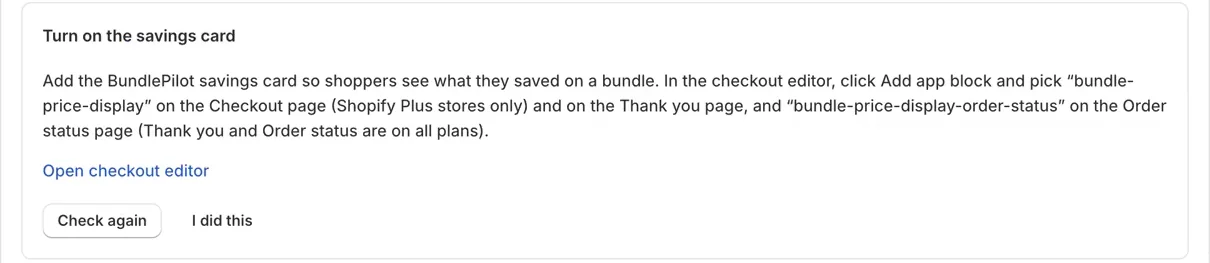
- Press Open checkout editor.
- Click Add app block and pick the bundle savings card on the Thank you page, and the order-status version on the Order status page. These work on all plans.
- On Shopify Plus you can also add it to the Checkout page.
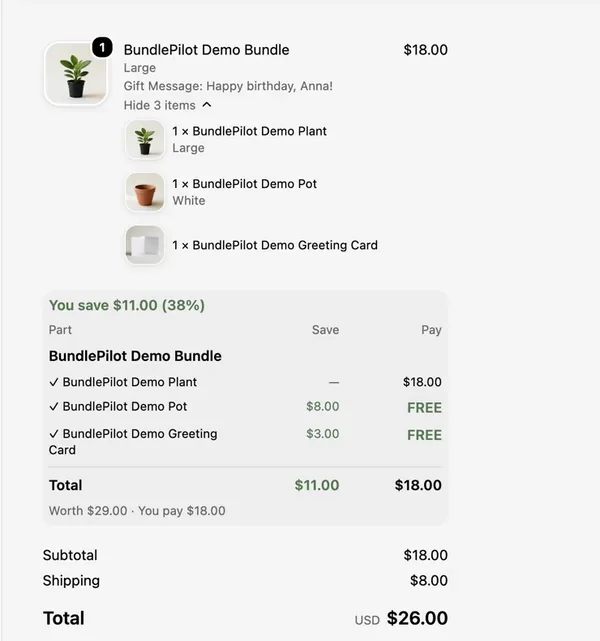
Check it works
- Open a bundle’s product page: shoppers see each item with its own picker, “Included”, “You save” and the bundle “Total”.
- Add the bundle to the cart: its parts are listed with the bundle price.
- After a test order, the order status page shows the savings card with “You save” and each part’s saving and price.
- Results show on Home, in Analytics (bundle orders, attach rate, average order value) and in Bundle orders.

Optional: start a monthly paid plan, with a 50% OFF code
The free plan stays available. Paid plans come with a 7-day free trial, as the listing states.
- In the left menu, open Plan. The page shows All plans as cards.
- Pick a paid plan. Later, Change plan under Plan switches between them.
- For 50% OFF, pick a monthly paid plan, then email the code we send you to skai@boldnsmart.com within 7 days of install. We apply 50% OFF your first bill; a store that picks a plan by 30 Nov 2026 gets at least one discounted bill, even if it lands in December. Shopify’s approval screen shows the regular price. There are only 50 codes per app; once the 50 codes for BundlePilot are used, new stores don’t get this discount.
Troubleshooting
- The Bundle builder block shows nothing. It renders only on the main product of a bundle. Create a bundle first (Setup step 1), then check that the block is on the product template that product uses, and that the template is saved.
- The theme editor offers no app blocks. App blocks only fit themes built on Online Store 2.0, where every page is made of sections. An older theme cannot hold them. Check the theme in Online Store, Themes, or switch to an Online Store 2.0 theme.
- The cart shows the bundle without its parts. Turn on the BundlePilot cart lines app embed (Setup step 3). Some themes also need the embed’s advanced selector fields, such as the cart line container and the product title.
- The bundle is not split into its parts at checkout. A Shopify Cart Transform function expands the bundle at cart time. Every product used inside the bundle must be published to your Online Store; Setup step 4 lists any that are not, each with a Publish link.
- A bundle shows “Sold out”. One of its parts is unavailable. Restock or replace that part.
- The savings card is missing on the Checkout page. On the Checkout page it needs Shopify Plus. On the Thank you and Order status pages it works on all plans, once its app blocks are added in the checkout editor.
- You need a different main product. The main product and its sizes cannot be changed after a bundle is created. Create a new bundle.
Remove BundlePilot
- In the theme editor, remove the Bundle builder block from your product templates and turn off the BundlePilot cart lines app embed.
- In the checkout editor, remove the savings card app blocks from the Thank you and Order status pages.
- In your Shopify admin, open Settings, then Apps (called Apps and sales channels on some admins), choose BundlePilot and uninstall it.
Only 50 codes per app
50% OFF any monthly paid plan while the offer runs
- Install the app from the Shopify App Store. A free plan is available.
- Pick a monthly paid plan, then email the code we send you to skai@boldnsmart.com within 7 days of install.
We apply 50% OFF your first bill. Shopify’s approval screen shows the regular price.
Once the 50 codes for BundlePilot are used, new stores don’t get this discount.
CodeGet the code
Offer terms
50% OFF any monthly paid plan while the offer runs
- Paid plan
- Any BundlePilot monthly paid plan
- Code
- −50%
- Cancel
- The 50% ends
- Codes
- Only 50 per app
- Free plan
- Available
 BundlePilot: Smart Bundles · Free plan available
Questions about setting up BundlePilot
Do I need separate SKUs for bundles?
No. Each item in a BundlePilot bundle keeps its own variant, and the bundle is expanded into its real parts at cart time.
What does the shopper see in the cart and at checkout?
A savings card: “You save” with the total saved, what each part saves and costs, and the bundle’s full worth next to what they pay. On the Checkout page this needs Shopify Plus; on the thank-you and order status pages it works on all plans.
What happens if one part of a bundle is sold out?
The bundle shows “Sold out”. Every part must also be published to your Online Store, which the Setup screen checks for you.
Can shoppers add a gift message?
Yes, optionally, per bundle item, with a character maximum you set.
Can I change the main product after creating a bundle?
No. To change the main product or its sizes, create a new bundle.
Read or leave a review of BundlePilot: Smart Bundles on the Shopify App Store