
Before you start
You need a Shopify store and permission to install apps on it. SalePilot does not need Shopify Plus. Decide the sale’s start, its end and the timezone it runs on before you open the app.
Install SalePilot
- Open SalePilot Smart Sale Scheduler on the Shopify App Store and install the app.
- Log in to Shopify and choose the store.
- Review the permissions Shopify shows and approve. The listing names: edit products and collections, view orders from the last 60 days, edit discounts, and view the Online Store theme.
- The app opens on its Home screen inside your Shopify admin. The left menu reads: Home, Sale Events, Analytics, Upgrade to Pro, Settings.
Create a sale event
- On Home, press New sale event (or Create sale event on the Sale Events screen).
- Under Name, type a name shoppers will never see, for example the sale’s theme.
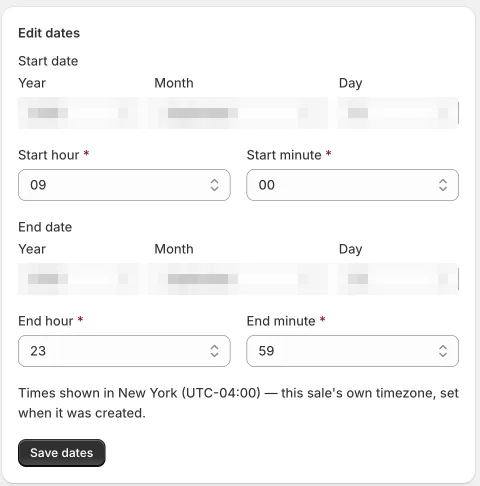
- Under Schedule, set Start date, Start hour, Start minute, End date, End hour and End minute.
- Check Timezone. It defaults to your store’s timezone; change it only if this sale runs on a different clock.
- Press Create.
Choose what is discounted
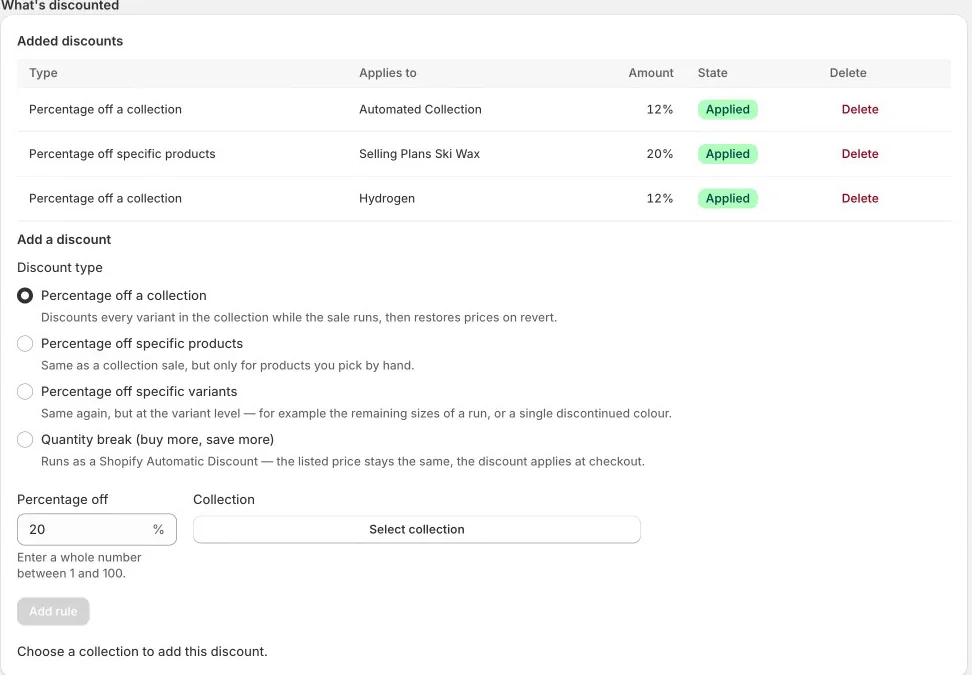
- In the sale’s What’s discounted section, open Add a discount.
- Pick a Discount type: Percentage off a collection, Percentage off specific products, Percentage off specific variants, or Quantity break (buy more, save more).
- Enter Percentage off as a whole number from 1 to 100, and choose the collection, products or variants. For a quantity break, set the Minimum quantity.
- Press Add rule. If two rules hit the same variant, the Overlapping rules report shows which one wins.
Pick how the sale shows
In Settings, Default mechanism for new sale events offers two options:
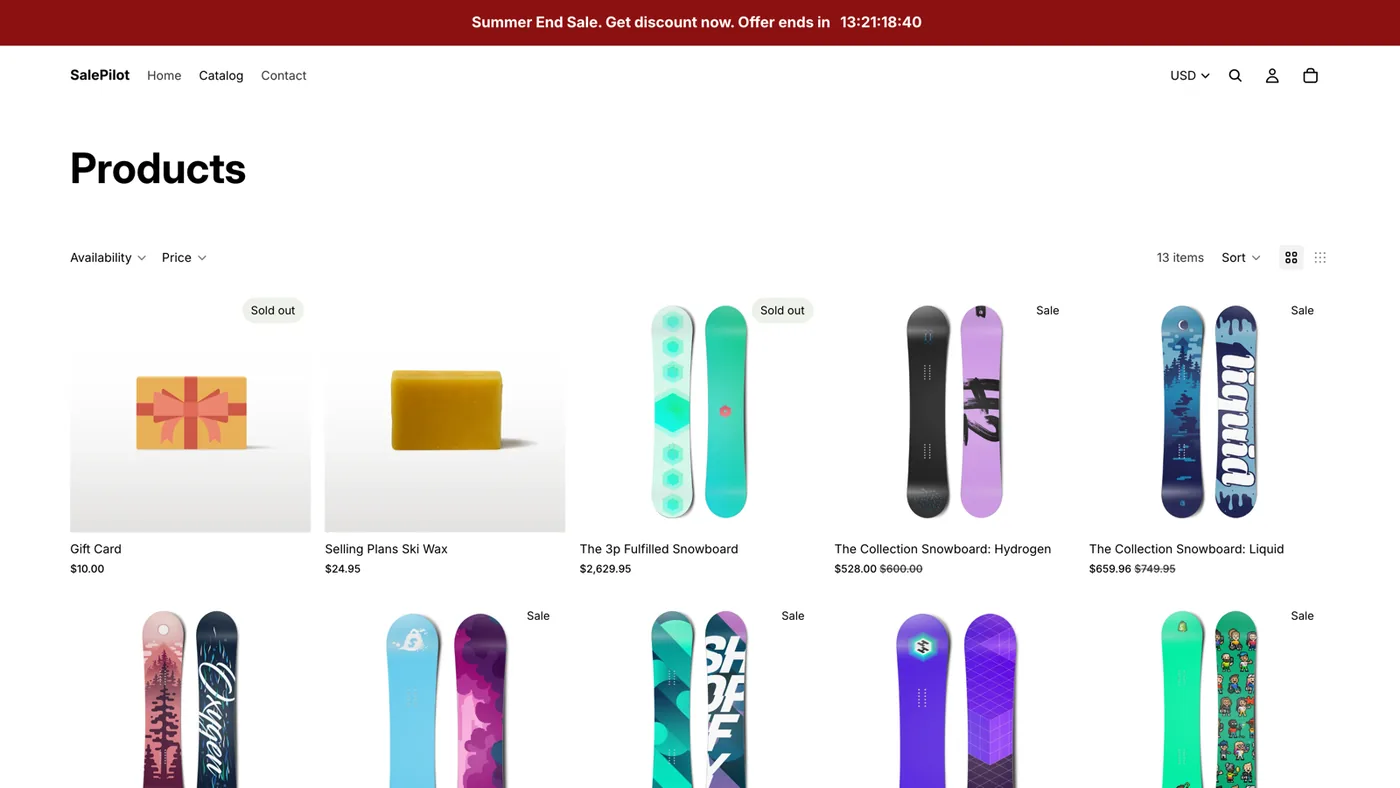
- Native discount (recommended): Shopify applies the sale as an automatic discount at cart and checkout. Product prices stay unchanged.
- Price edit: SalePilot changes each variant’s price and compare-at price for the sale window, so the crossed-out price shows on product pages, and restores them after.
This setting only preselects the option for new sale events.
Preview, then schedule
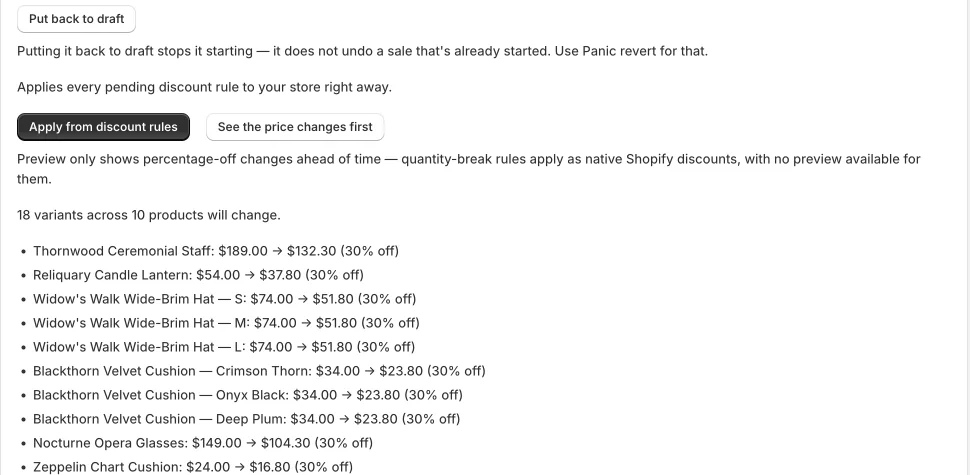
- Press See the price changes first to preview percentage-off rules. Quantity breaks are not previewed.
- Press Schedule this sale. Until you do, a yellow banner says “This sale is not scheduled yet”: saving alone does not start anything.
- If the start time has already passed, the button reads Schedule and start now.
- To stop a scheduled sale before it starts, press Put back to draft.
Optional: the countdown bar
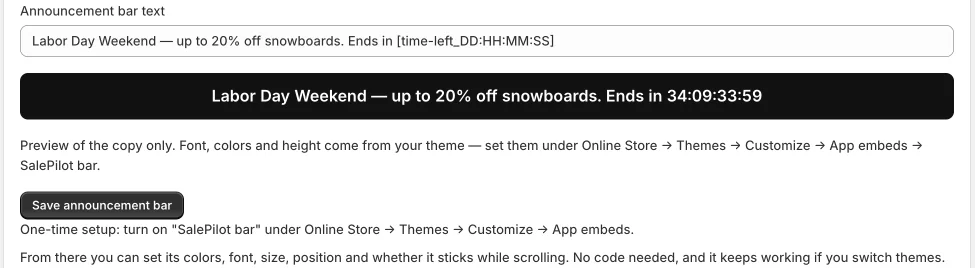
- In Shopify, go to Online Store, Themes, Customize, App embeds, and turn on SalePilot bar. This is a one-time step.
- In the embed you can set background and text colour, font, size, height, position, and whether the bar stays visible while scrolling.
- Back in the sale event, under Announcement bar, type the Announcement bar text. Add the token
[time-left_DD:HH:MM:SS]for a live countdown. - Press Save announcement bar. The bar switches on when the sale applies and off when it reverts.

When the sale ends
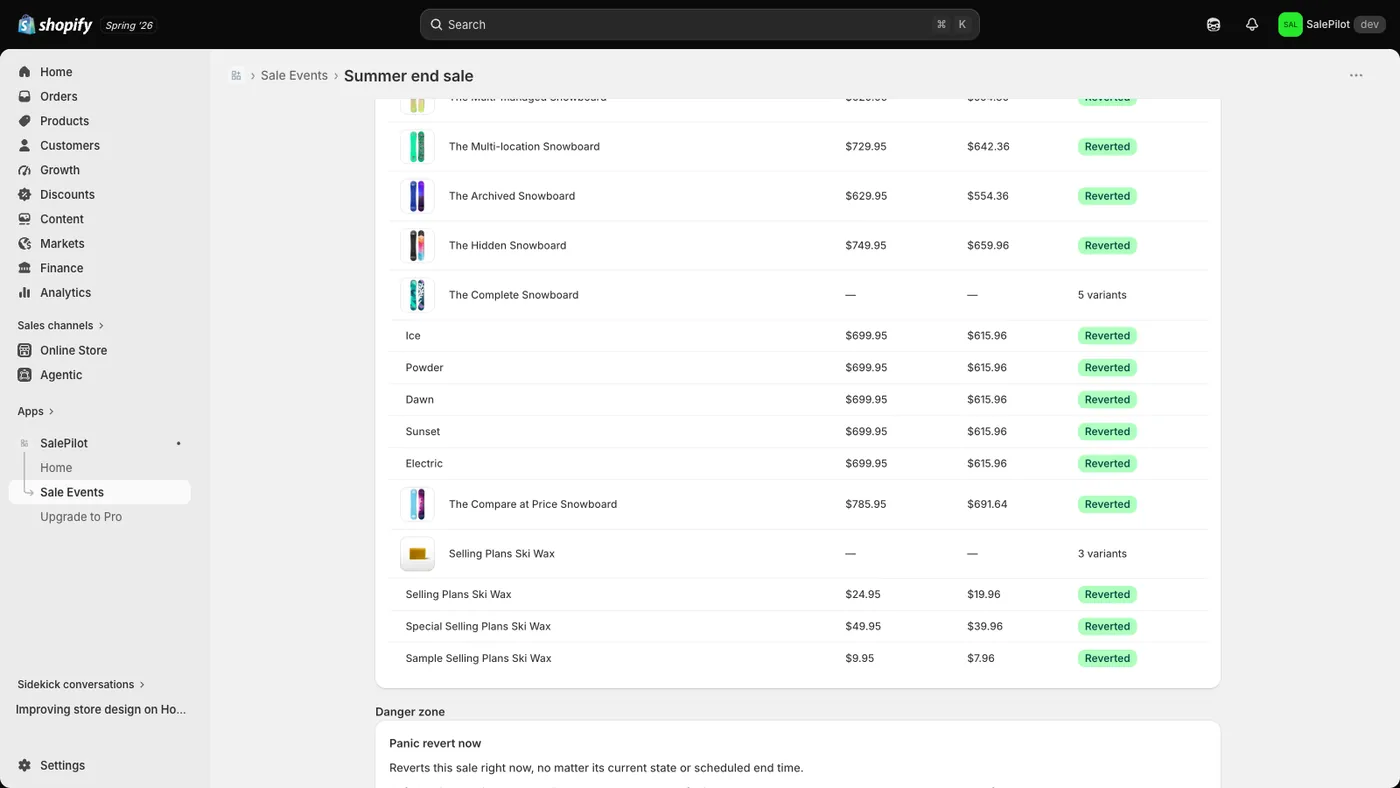
- Prices go back on their own at the end time, typically within about a minute, whether or not you are logged in.
- The Revert report lists every price the sale touched, with the status Clean, Flagged or Pending.
- A price you changed by hand during the sale is never overwritten. It is flagged for review instead.
- Panic revert now, in the Danger zone, ends the sale immediately.
Optional: start a monthly paid plan, with a 50% OFF code
The free plan stays available. To start SalePilot Pro:
- In the left menu, open Upgrade to Pro. The page is called SalePilot plans and compares Free and SalePilot Pro.
- Press Start 7-day free trial.
- While the offer runs, enter the code we email you in the app when you start a monthly paid plan, and the plan is 50% OFF while the offer runs. There are only 50 codes per app; once the 50 codes for SalePilot are used, new stores don’t get this discount. Shopify shows the exact discount period before you approve.
- Cancel subscription on the same page returns the store to Free.
Troubleshooting
- The sale did not start. Saving does not start a sale. Open it: if the yellow banner “This sale is not scheduled yet” shows, press Schedule this sale. The button stays disabled until the sale has at least one discount rule.
- The product page still shows the regular price. With Native discount (recommended), product prices stay unchanged and the discount applies at cart and checkout. For the crossed-out price on product pages, use Price edit. A quantity break always applies at checkout.
- A variant discount does not show on a collection page. Collection cards usually show only the default variant’s price, so the discount may not show until a shopper opens the product. That is normal theme behaviour.
- The countdown bar does not show. Check that the SalePilot bar app embed is on in Online Store, Themes, Customize, App embeds, and that the sale has its Announcement bar text saved. The bar shows only while the sale applies.
- “Scheduling is unavailable right now”. The form shows this when it cannot read your store’s timezone, and it blocks new sales until it can. Reload the app; if the message stays, contact support from the App Store listing.
- Already applied: revert before applying again. The sale is already live. Revert it before you apply it again.
- Two sales discount the same product. The Overlapping rules report shows which rule wins.
Remove SalePilot
- End any live sale first: open it and press Panic revert now in the Danger zone, so every price goes back before the app is removed.
- To stop a paid plan but keep the app, press Cancel subscription on the SalePilot plans page. The store returns to Free.
- Turn off the SalePilot bar app embed in Online Store, Themes, Customize, App embeds.
- In your Shopify admin, open Settings, then Apps (called Apps and sales channels on some admins), choose SalePilot and uninstall it.
Only 50 codes per app
50% OFF any monthly paid plan while the offer runs
- Install the app from the Shopify App Store. A free plan is available.
- Enter the code we email you when you start a monthly paid plan.
Shopify shows the exact discount period before you approve.
Once the 50 codes for SalePilot are used, new stores don’t get this discount.
CodeGet the code
Offer terms
50% OFF any monthly paid plan while the offer runs
- Paid plan
- Any SalePilot monthly paid plan
- Code
- −50%
- Cancel
- The 50% ends
- Codes
- Only 50 per app
- Free plan
- Available
 SalePilot Smart Sale Scheduler · Free plan available
Questions about setting up SalePilot
How do I schedule a Shopify sale that ends by itself?
Create a sale event with a start, an end and a timezone, add a discount rule, then press “Schedule this sale”. SalePilot applies the prices at the start and puts them back at the end, whether or not you are logged in, typically within about a minute of the scheduled time.
What if I forget to end a sale?
Every sale event has an end time, and the end time triggers the revert. “Panic revert now” ends it sooner.
What happens to a price I edit during the sale?
SalePilot does not overwrite it. When the sale reverts, the item is flagged for review in the revert report.
Does SalePilot need Shopify Plus?
No. It works on stores without Shopify Plus.
Can I run more than one sale at once?
Yes. Each sale tracks its own prices and its own revert time. When two rules hit the same variant, the “Overlapping rules” report shows which one wins.
Read or leave a review of SalePilot Smart Sale Scheduler on the Shopify App Store