

Plan two sales that do not overlap
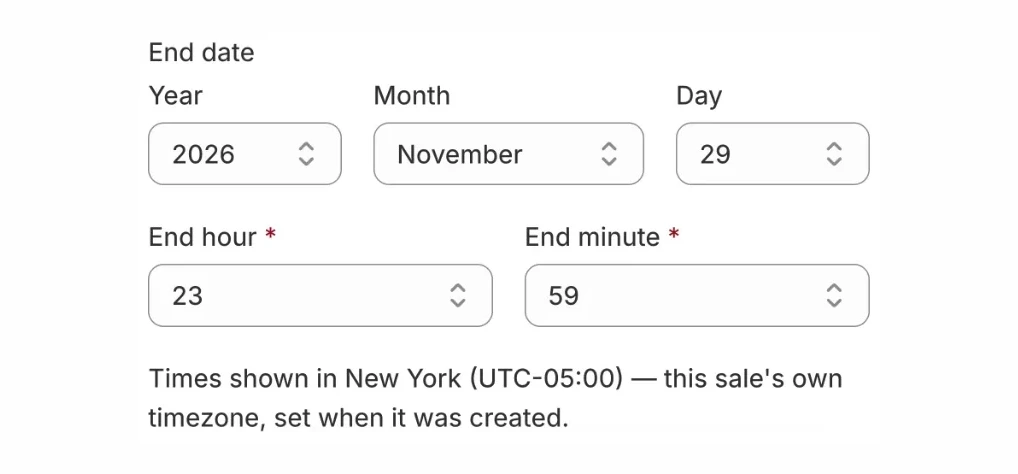
- Black Friday: Friday 27 November, 00:00 to Sunday 29 November, 23:59. Cyber Monday: Monday 30 November, 00:00 to 23:59. Change the hours to your own plan.
- One clock for both. Use your store’s timezone for both sales, and put the same start, end and timezone in your announcement.
- End one before the next starts. If two scheduled sales with percentage rules share a product and their times overlap, the discounts stack. SalePilot warns “Prices would stack to …% OFF” and asks you to keep or skip those products before it schedules. In a BCG survey, more than 70% of consumers said they prefer a single, clear discount to several they need to combine (source).
- Pick a depth your margin can carry. In McKinsey’s worked example, volume has to rise 18.7% just to offset a 5% price cut (source). Leave out items that already sell well at full price.
- Check your plan. The Free plan runs one sale event per calendar month. Two sales in November need SalePilot Pro. On Free, run one sale from Friday 00:00 to Monday 23:59 instead.
Create each sale and its discounts
- In SalePilot, open Sale Events and press Create sale event.
- Under Name, type Black Friday Sale. Shoppers never see this name.
- Under Schedule, set the start date, Start hour and Start minute, then the end date, End hour and End minute. Check Timezone, which defaults to your store’s, and press Create.
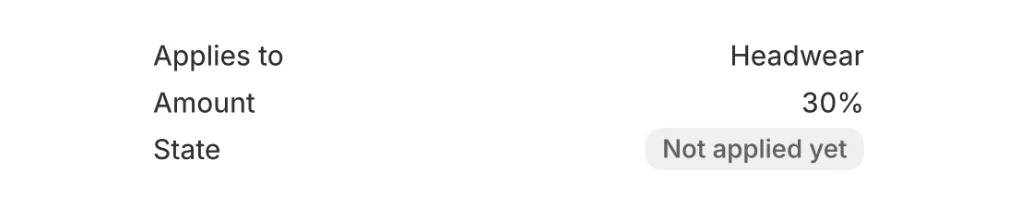
- In What’s discounted, under Add a discount, pick Percentage OFF a collection, Percentage OFF specific products or Percentage OFF specific variants. Enter the Percentage OFF, choose what it covers and press Add to sale.
- Do the same for Cyber Monday Sale, with its own dates and discounts.
One real store. On one real store, SalePilot applied 782 price changes in one day and changed 391 of them back. That is one store, not an average.
Schedule it and let it end on its own
- Press See the price changes first to check each variant’s regular and sale price before anything goes live.
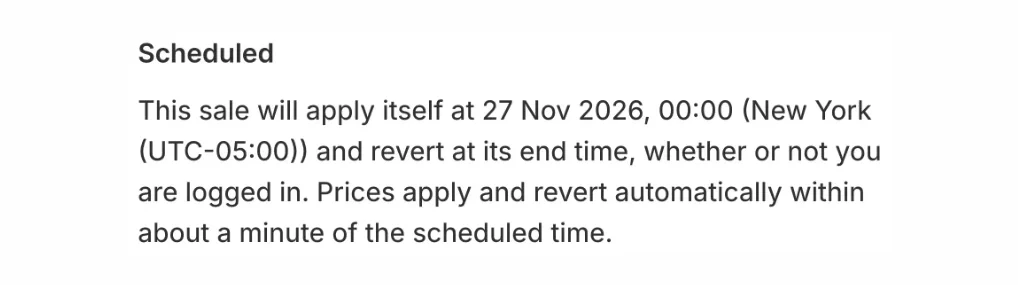
- Press Schedule this sale. Saving alone starts nothing: until you schedule, a yellow banner says “This sale is not scheduled yet”.
- At the start, each covered variant gets its sale price and the regular price moves to compare-at, so your theme shows it crossed out. At the end, the regular prices come back.
- Optional countdown: turn on the SalePilot bar app embed once in Online Store, Themes, Customize, App embeds. In the sale, type the Announcement bar text with
[time-left_DD:HH:MM:SS]and press Save announcement bar. The bar shows only while the sale runs. - After each sale, the Revert report lists every price it touched. A price you changed by hand during the sale is not overwritten; it is flagged for you to check. Panic revert now ends a sale at once.
Example, use your own numbers. A 30% OFF sale left on for 2 extra days, at 40 orders a day and a $60 average order, could give away 40 × 2 × $60 × 30% = $1,440.
First 50 stores
50% OFF your first month of SalePilot Pro
- Get the code by email from the SalePilot offer page.
- Install SalePilot, choose SalePilot Pro, monthly, and type the code in the app’s Discount code field.
Start your 7-day trial by Nov 23. SalePilot Pro is $9.99/month with a 7-day free trial.
CodeGet the code
 SalePilot Smart Sale Scheduler · Free plan available
Questions about SalePilot on Black Friday
Can I stop a scheduled sale before it starts?
Yes. Press Put back to draft. It stops the sale from starting, but it does not undo a sale that has already started.
What if the start time has already passed when I schedule?
The button then reads Schedule and start now, and pressing it starts the sale.
Does SalePilot need Shopify Plus?
No. It works on stores without Shopify Plus.
New to SalePilot? Start with the full install and setup guide What SalePilot does